Creating A Transparent Counter Strike: Source Spray
This tutorial is a quick and easy guide on how to create your own personal transparent spray for Counter Strike: Source !
Step 1:
First open up Photoshop and create a new document, get the picture you want to use and paste it into your new document.

Step 2:
Next get the magic wand and select all of the inside of the image
Step 3:
Next group all of the layers and then choose the “Channels” tab, located next to the “Layers” tab, then click “Create New Alpha Channel” button
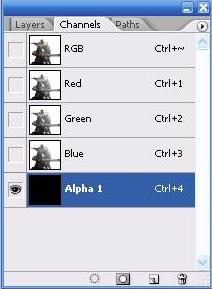
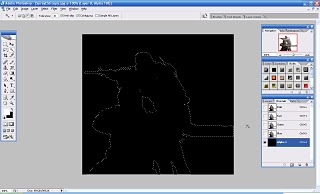
Step 4:
Next press “D” to reset to default colours and then press “ALT + BACKSPACE”
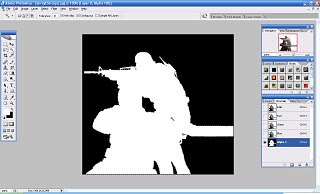
Step 5:
Next go back to the “Layers” tab and press “CTRL + D” to deselect all, then click on the layer you are working on to select it, then fill in the background with a grey colour, then save as a “TARGA” file and upload to Counter Strike: Source through the “Options” button on the main screen of the game.
Step 6:
Get Spraying !!!!
Hope this tutorial helped you, feel free to leave any comments if you find any problems with it !




I accidentally closed the channels tab, how do I
bring those things up again?
Hey,
If you go to your Photoshop and then go to “Windows” on the top toolbar > then go to “workspace” and “default workspace” or just click the “channels” button on the windows tab,
Hope this helped,
Cheers
StevieBoy =D
What colour grey? The one I chose did not work.
Hi,
I believe any grey colour works to be honest, I have done it with random grey colours and they have all worked fine for me,
maybe try and go through the tutorial again to make sure you have done everything correctly,
Thanks
StevieBoy =D
how do you select the inside of the image? when i drag the cursor i can only make rectangle boxes. how come you don’t explain how to do this in your guide?
hiya,
well…you need to use the “magic wand” tool which is shaped like a wand pretty much, if you can’t find it then right click on the buttons down the left hand side and you should see it, after you have picked this then just simply click the inside of the image you DON’T need to drag…
if you continue to have problems don’t hesitate to contact me again..
Cheers,
Stevie =D
Thank you for this tutorial.
Nice blog, good tutorials, clear explanations.
~ Rhythms
I didnt get it to work csc says the file is unreadable or someting.
how do I
1.”select all of the inside of the image”
2.”then fill in the background with a grey colour”
?
@ anonymous: you have to save it as a targa file. Otherwise it wount work in css and he cant read it.
When you have multiple layers, first merge them to one (select all you layers, then right-click and choose ‘merge visible’. Then you can select “all of the inside image” very quickly (select the background, then choose in the ‘select’ menu the option invers’.
Now, make your alpha layer (explained in the tutorial above) and after that you can fill the background (with the fill tool)
its not that hard!
ps: sorry for my bad english but im from Belgium and im not so good at it … :s
Thanks alot KixGirl, I totally forgot someone had asked me that in this tutorial as I was too busy with the design
Amigo..
na hora que eu criei um canal…. tah…. vc fla pra apertar “D”…mas naum acontece nada aki…e tbm naum consigo excluir oe descelecionar a camada ….pode explicar melhor somente essa parte do “D” ateh a salvasão do arquivo…
vlw…
I seem to have problems with an image that is only grayscale from the beginning. Counter strike says it is not an valid image. Something about not being 32 bit RGB or RGBA. Another image with red in it worked fine. When saving it asked for color depth and I choose 32 bits, but with the gray image, it did not.
this does not work on photoshop elements 6
there is no channels thing
is there another way??
First, check if your channeltab is selected in the menu window.
If not… dont know an other solution cause i dont have elements 6… srry
guys try
R127
G127
B127
pure gray
work’d for me.
Hey, I can’t get it saved as Targa, it just isn’t on the list when i click ->save as
(photoshop CS4)
Please help
@Mobrix: thats idd a problem… Could have multiple answers…
what is your colormode (image > mode)? make sure its on RGB (!not index color)
Try to do all the steps again, maybe it works this time?
otherwise: shoot!
dude. Nice tutorial ! great stuff , helped me very much , Thank you .
how about when making a tutorial, tell us what we should be doing rather than saying the hotkeys.
Could you please make me a transparent spray wich says: Div[ii]ne
i would be very thankfull ^^
Fill background with color: #565655
This doensnt work with photoshop 7 right? atleast i cant get it to work :S
I don’t think so mate, you need Alpha channels and I don’t believe Photoshop 7 has these!
Please correct me if I’m wrong?
How did you get it to be so detailed in CSS? All of my sprays turn out blurry and hard to make out. Is it a simple matter of making a larger pic, or is it making a less detailed pic to begin with, or something else entirely?
How high are your graphics set in game? Mine are on the highest setting therefore the quality of the spray is better, if you have it set lower then it makes everything (including sprays) a lot worse quality
I have 7.0, I do everything correctly, but it comes up with 256k size. RGB, 256 x 256, Gray background, everything.
When I make is smaller, it just comes up as pink and black checkers. Help! :S
When i do this with step 5 i make the BG gray but when i turn on the image again it makes the grey turn to a tinge of red… i’ve done it about 10 times and keep getting the same result. when i spray it in game the part i want transparent shows up as white but the image is slightly transparent… any help would be greatly appreciated, i just hope this isn’t too long after the original post lol.
Thanks.
Followed the instructions, and the part filled with gray on my image shows up as white in CS:S.
Nooo idea what to do o.o
Thanks !!! It works.
U all are Nooobz Just Do as the Tutorial… its 100% Accurate !
thnx great post.its working P